 GPT Image 2From $0.007/image
Choose a model, enter your prompt, and see the result.
HiAPI Blog
HiAPI
Generate it with HiAPI
AI video models will follow explicit camera-movement instructions in a text prompt almost as reliably as a real camera operator follows a shot list — you just have to name the movement correctly and describe what the lens is doing, not just what's in frame. We tested six core cinematic camera movements — push-in, pull-back, pan, orbit, tracking/follow, and crane — across four of hiapi's live video models (Kling 3.0 Turbo, Veo 3.1, Grok Imagine 1.5, Seedance 2.5), plus a bonus technique unique to Seedance 2.5: transferring a camera path from a reference video onto a completely different subject. Every clip below is a real output from our own prompts, embedded and playable inline.
@video1 tokens — useful when you've already found a camera move that works and want to reuse it.Generic prompts like "cinematic shot of X" tell the model almost nothing about camera behavior, so it defaults to whatever's statistically common in its training data — usually a static or gently drifting frame. The fix is to treat the camera like a character with its own verb: pushes in, pulls back, pans, orbits, tracks, rises. Below, each of the six core movements gets its own section with a real prompt, a real clip, and notes on which model handled it best.
A push-in moves the camera toward the subject, tightening the frame and building intensity — the classic "camera creeps closer" reveal shot. We ran the same instinct across three different models and subjects.
Prompt:
Camera slowly pushes in toward the sneaker, fine dust particles drift upward and sparkle in the warm rim light, subtle suede texture shimmer, no camera shake
Prompt:
The red panda tea master gently pours the glowing tea, steam rises and swirls, lantern light flickers softly, camera slowly pushes in
Prompt:
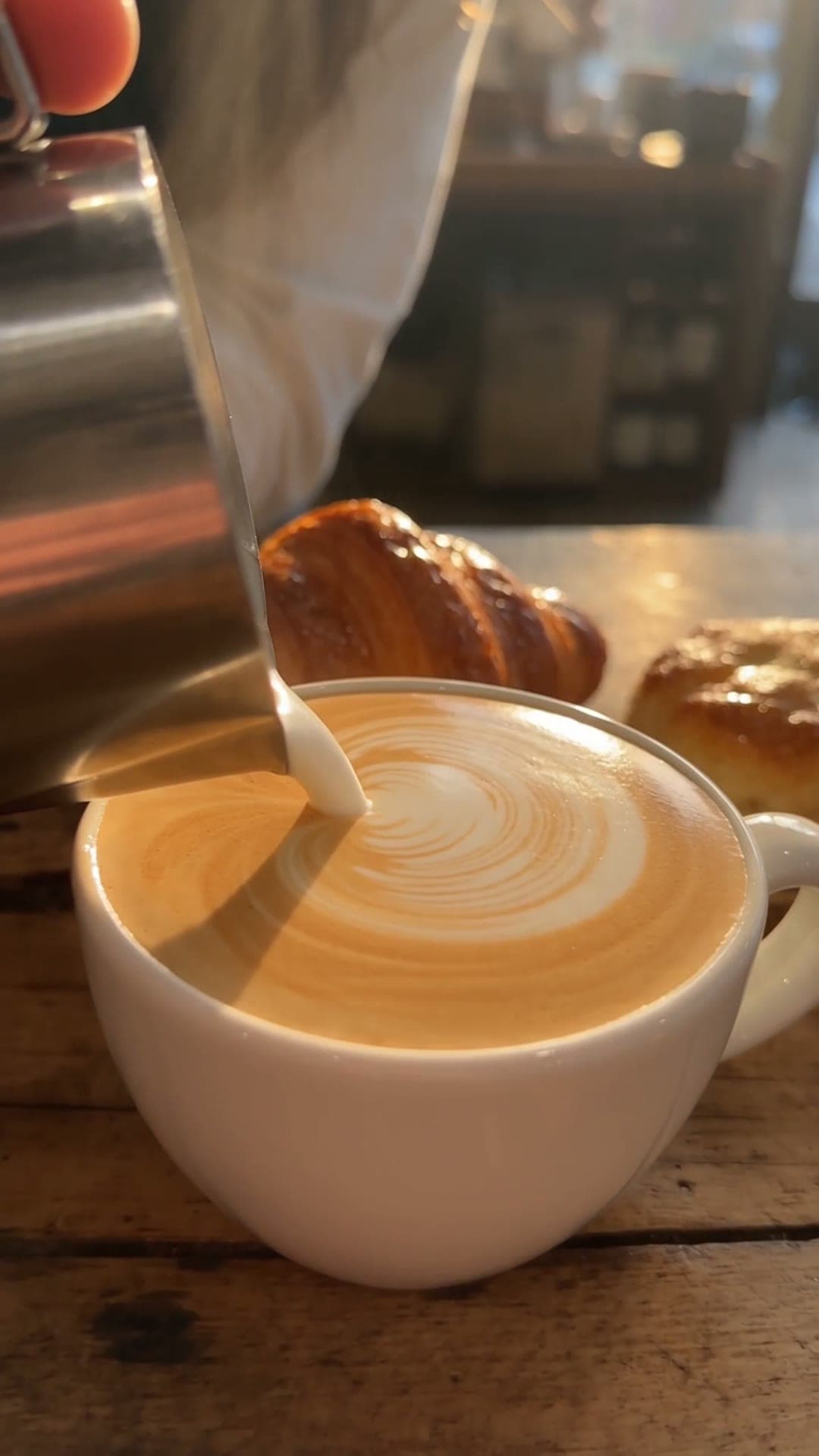
Slow, steady dolly-in on the steaming coffee cup, camera glides forward and slightly down, steam swirls and drifts upward in soft morning light, gentle handheld micro-motion, cinematic shallow depth of field, warm natural color grade
Push-in is the single most reliable movement we tested — all three models respected "pushes in" / "dolly-in" phrasing and kept the subject centered and sharp through the move. If you're only going to nail one camera direction, start here.
A pull-back opens the frame outward, usually to reveal scale or context the viewer couldn't see up close. We used Veo 3.1 for this because it renders wide aerial geography convincingly.
Prompt:
Marrakech night market aerial pullback, lantern-lit stalls, dusk
Pull-backs work best when there's a dense, detailed foreground subject for the camera to retreat from — an empty or simple scene doesn't give the reveal anything to reveal.
A pan rotates the camera horizontally from a fixed point, sweeping across a scene without moving forward or backward. This is the move to reach for when you want to establish scale across a horizontal landscape.
Prompt:
Reindeer herd migrating under green aurora, snow plain, wide pan
Note that we didn't even need to say "camera pans" explicitly here — "wide pan" as a standalone phrase was enough for Veo 3.1 to read it as a camera instruction rather than a description of the herd's spread. Explicit is still safer, but the model is flexible about where in the prompt the instruction sits.
An orbit circles the camera around a fixed subject, keeping it centered while the background rotates behind it — a staple of product commercials because it shows every angle in one continuous shot.
Prompt:
Camera gently orbits around the floating sneaker, dust motes swirl and catch the amber light, soft atmospheric haze drifts across the canyon backdrop in the distance
Grok Imagine 1.5 held the subject rock-steady through the full orbit here, which is the hard part of this move — if the subject drifts even slightly off-center, the orbit reads as sloppy handheld footage instead of a locked mechanical move.
A tracking shot moves alongside a moving subject, matching its speed and direction — the camera becomes a running companion rather than a fixed observer.
Prompt:
A fluffy corgi puppy sprinting across a sunlit meadow in slow motion, ears flapping, golden hour backlight, cinematic tracking shot
Kling 3.0 Turbo kept pace with the subject's stride without the camera-to-subject distance drifting — the meadow behind the corgi blurs convincingly rather than smearing, which is the usual tell for a tracking shot gone wrong.
A crane shot moves the camera vertically, usually rising to reveal scale or transition from an intimate moment to a wide establishing view.
Prompt:
Balloons ascend over golden valley, camera rises, i2v from still
We used Veo 3.1 Fast here — the "fast" tier trades a small amount of top-end detail for lower cost and latency, and for a smooth vertical rise like this the difference wasn't visible in the output.
Seedance 2.5's reference-to-video endpoint does something the other five moves above can't: it lets you point at an existing video with the @video1 token and tell the model to keep that video's camera choreography — its movement, pacing, and framing — while swapping out the subject or the visual style entirely. That means once you've found a camera move you like, you can reuse it on new subjects without re-describing it from scratch.
Prompt:
Use @video1 as the sole visual reference. Preserve the corgi's recognizable markings, running cadence, stride timing, body orientation, forward momentum, and the low side-tracking camera movement. Reimagine the entire scene as a handcrafted stop-motion film made from felt, wool, miniature grass, and painted paper scenery. Keep the warm sunset backlight and continuous chase rhythm, with subtle handmade texture and natural depth of field. Maintain one coherent corgi throughout the shot, anatomically stable legs, smooth forward motion, and a continuous camera path. Do not introduce additional animals, text, logos, abrupt cuts, or unrelated objects.
This took the low, side-tracking camera path from our corgi-in-a-meadow clip above and applied it to a felt stop-motion re-render of the same action — same tracking shot, completely different visual medium. We've also used this technique to lift a product-commercial camera path onto a different product (swapping a running shoe for a perfume bottle via @image1) and to combine a reference video's camera choreography with a reference image's subject and a reference audio track's timing (@video1 + @image1 + @audio1 together) — the endpoint accepts any combination of the three reference types in one call.
Based on this test set:
On pricing (as of 2026-08, verified against hiapi's live pricing page): Kling 3.0 Turbo runs $0.13/s at 720p; Seedance 2.5 image-to-video and text-to-video run $0.30/s at 720p, while its reference-to-video mode is cheaper at $0.27/s; Grok Imagine 1.5 is the least expensive of the four at $0.0114/s (480p) or $0.0214/s (720p); Veo 3.1 costs $0.29/s at 720p without native audio ($0.57/s with) and Veo 3.1 Fast cuts that to $0.17/s and $0.25/s respectively. If you're testing camera-movement prompts before committing to a full render, Grok Imagine 1.5 or Veo 3.1 Fast are the cheapest ways to iterate.
Do I need to say "camera" explicitly for the model to treat it as a camera instruction? Usually, but not always — in our pan test, the standalone phrase "wide pan" was interpreted correctly without the word "camera" attached. It's still safer to write "camera pans," "camera pushes in," etc. explicitly, especially in longer prompts where the instruction could get lost among subject and lighting details.
Can I combine two camera movements in one prompt, like a push-in that turns into an orbit? You can try, but in our testing single, clearly-named movements produced more reliable results than compound moves. If you need a multi-move shot, it's often more reliable to generate two clips (one per movement) and cut between them than to ask one generation for both.
Which model is best for beginners experimenting with camera-movement prompts? Grok Imagine 1.5, mainly on cost — at $0.0114–0.0214/s it's cheap enough to iterate on wording without worrying about spend, and it handled push-in and orbit reliably in our tests.
Does image-to-video or text-to-video work better for camera movement prompts? Both work, but image-to-video (starting from a still frame) gives you more control over composition before the camera starts moving, since you've already locked the starting frame. Text-to-video is faster to iterate with when you're still experimenting with the movement itself rather than the exact framing.
If you want to run these prompts yourself, every model referenced here is live on hiapi's video model list with the same API shape across models — swap the model field and the reference-media fields, keep the same task-submit-and-poll flow.