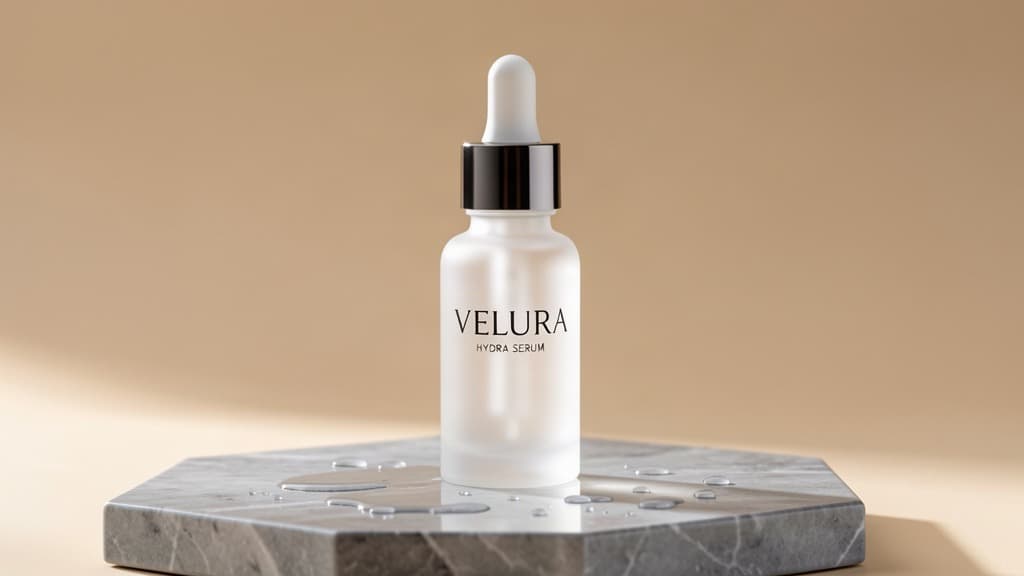
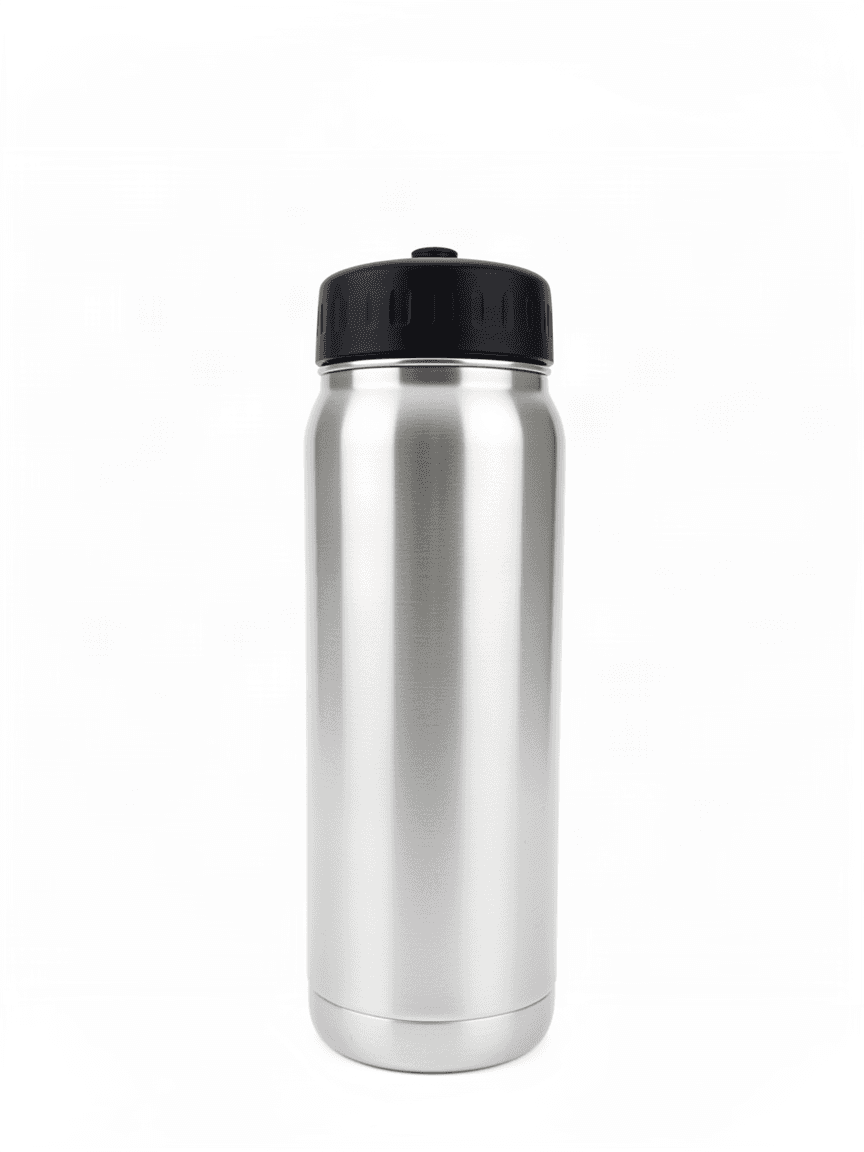
Why edit product photos instead of reshooting them
A single hero shot of a product rarely covers everything a listing needs. A marketplace grid wants a clean white-background image. A blog post or ad wants the same product in a lifestyle setting. A seasonal campaign wants a color or material variant that may not exist yet. Reshooting for every variant is slow and expensive — and most of the time the geometry (shape, logo placement, proportions) shouldn't change at all, only the background or one material.
That's exactly the job flux-2-klein-4b/image-to-image is built for on the hiapi API: it takes an existing product photo plus an edit instruction, and produces a new image where everything you didn't ask to change stays put. It's the fast, cost-efficient tier of the FLUX.2 [klein] family — not the model to reach for when you're generating a product from scratch, but a good fit once you already have a base shot you like.
Below are two real edits run against the same starting photo, with the exact prompts used, plus a batch script for running this across a full product catalog.
The starting photo
This is the base image every edit below starts from: matte black over-ear headphones, shot on a plain gray studio background — a typical "before" photo for a product listing that needs more variants.
Edit 1: dropping the product into a lifestyle scene
Prompt used:
Keep the headphones exactly as they are (shape, matte black finish, logo, proportions unchanged). Replace the plain gray studio background with a warm lifestyle scene: the headphones resting on a light oak wooden desk beside a closed MacBook, a small potted plant, and a ceramic coffee cup, soft natural window light from the left, shallow depth of field, cozy home-office editorial product photography.
The key move is the first sentence: telling the model explicitly what has to stay identical (shape, finish, logo, proportions) before describing the new background. Without that anchor, image-to-image models will sometimes drift the product's proportions or finish along with the scene. With it, the headphones come through unchanged and only the environment around them changes.
Edit 2: swapping a material without touching the shape
Prompt used:
Keep the headphone shape, proportions, logo, and camera angle exactly as they are. Change only the material and color of the ear cushions and headband padding from matte black to a tan brown leather texture with visible stitching, while the outer housing/headband arms stay matte black. Keep the plain gray studio background and lighting unchanged, e-commerce catalog product photography.
This one is a narrower edit than the lifestyle scene: same background, same lighting, same camera angle — only the ear cushion and headband padding material changes from matte black to tan leather. Scoping the instruction that tightly (name the exact parts, name the exact material) is what keeps the rest of the product — housing, logo, silhouette — from shifting.
What makes these edits reliable
- Name what stays fixed, not just what changes. "Keep the shape, logo, and proportions unchanged" before the edit instruction does more work than any amount of detail on the new background or material.
- Be literal about the target. "Tan brown leather texture with visible stitching" gives the model less room to interpret than "make it look premium."
- One edit per prompt. Background swaps and material swaps both work well individually; stacking multiple unrelated changes into one prompt tends to blur the anchor and let unwanted details shift.
- Reuse the same base photo across variants. Every image in this guide starts from the identical source photo, which is what makes them usable together in one listing or campaign.
Batch-editing a product catalog
Both edits above use the same request shape: an existing image URL plus an
edit prompt, submitted to hiapi's async task endpoint. The snippet below
loops that over a list of (base_image_url, prompt, output_name) tuples —
the same pattern you'd use to push a whole catalog through a batch of
background or material variants.
import os
import time
import requests

API_BASE = "https://api.hiapi.ai/v1/tasks"
TOKEN = os.environ["HIAPI_API_KEY"]
MODEL = "flux-2-klein-4b/image-to-image"


def submit_edit(base_image_url: str, prompt: str) -> str:
    resp = requests.post(
        API_BASE,
        headers={"Authorization": f"Bearer {TOKEN}"},
        json={
            "model": MODEL,
            "input": {
                "prompt": prompt,
                "image_urls": [base_image_url],
                "resolution": "1 MP",
            },
        },
        timeout=60,
    )
    resp.raise_for_status()
    return resp.json()["data"]["taskId"]


def wait_and_download(task_id: str, out_path: str, poll_s: int = 5, timeout_s: int = 300) -> None:
    deadline = time.time() + timeout_s
    while time.time() < deadline:
        r = requests.get(
            f"{API_BASE}/{task_id}",
            headers={"Authorization": f"Bearer {TOKEN}"},
            timeout=30,
        )
        task = r.json().get("data", {})
        if task.get("status") == "success":
            url = task["output"][0]["url"]
            img = requests.get(url, timeout=120)
            with open(out_path, "wb") as f:
                f.write(img.content)
            return
        if task.get("status") == "fail":
            raise RuntimeError(task.get("error"))
        time.sleep(poll_s)
    raise TimeoutError(f"task {task_id} did not finish in {timeout_s}s")


# One entry per product / variant you need.
batch = [
    ("https://cdn.example.com/products/headphones-black.jpg",
     "Keep the product exactly as-is (shape, finish, logo, proportions). "
     "Replace the background with a warm lifestyle desk scene, soft natural "
     "light from the left.",
     "headphones-lifestyle.jpg"),
    ("https://cdn.example.com/products/headphones-black.jpg",
     "Keep the shape, proportions, logo, and camera angle exactly as they "
     "are. Change only the ear cushion and headband padding material to tan "
     "brown leather with visible stitching; background and lighting stay "
     "the same.",
     "headphones-tan-leather.jpg"),
]

for base_url, prompt, out_name in batch:
    task_id = submit_edit(base_url, prompt)
    wait_and_download(task_id, out_name)
    print(f"saved {out_name}")
Each call is independent, so for a large catalog you'd typically run a small pool of these concurrently (a handful of workers is usually enough — the task API itself is the bottleneck, not your client) rather than looping strictly one at a time.
Pricing
flux-2-klein-4b/image-to-image is billed per image and scales with output resolution. As of 2026-08, the 1MP tier used for both edits in this guide costs $0.00715 per image; see the pricing page for the full resolution tiers (0.25MP up to 4MP) and current rates for other models, since pricing can change.
FAQ
Does image-to-image change the product's shape or logo? Not if you tell it not to. Explicitly naming what must stay fixed (shape, proportions, logo) at the start of the prompt is what keeps those elements stable — leaving it implicit is the most common cause of unwanted drift.
What resolution should I use for catalog edits? 1MP is enough for most web listings and lifestyle content and keeps cost down; step up to 2MP or 4MP only for images that will be cropped tightly or printed, since each tier costs more.
Can I run this against a whole catalog at once?
Yes — the batch script above is the pattern: loop over (image, prompt, output name) tuples and submit each as its own task. Run a handful of
requests concurrently rather than one giant sequential loop.
How is this different from generating the product from scratch with text-to-image? Text-to-image starts from nothing, so it can't guarantee the result matches an existing product's exact geometry. Image-to-image starts from your real photo, so the shape, logo, and proportions you didn't ask to change are preserved by construction — which is what a product catalog needs.
Try it yourself
Both edits above took one API call each once the prompt was scoped tightly. If you already have product photos and want to generate lifestyle or material variants without a reshoot, the hiapi docs quickstart walks through authentication and your first request in a few minutes.