Most image models treat text as a texture they render if you're lucky. Ideogram V4 treats it as the subject. If your brief involves a headline, a logo lockup, a poster, or a product label — anything where the words have to actually read correctly — it's worth reaching for before you reach for a general-purpose model and hope for the best.
This page is the hub for using ideogram-v4 on hiapi: when it earns its place in your stack, what the API will and won't let you control, two real renders with their exact prompts, and where to go next for a full code walkthrough.
When Typography Should Drive the Model Choice
General-purpose image models are trained to be good at everything, which means text rendering is one skill among hundreds — strong on short words, shakier once you need a full tagline or a logo with two lines of different sizes. Ideogram's models are trained with typography as a core objective, so the failure mode is different: instead of garbled letterforms, you're more likely to get correct text that's placed slightly off from where you asked.
Reach for ideogram-v4 when the deliverable is judged on legibility first — posters, signage, packaging mockups, app store screenshots with real UI copy, logo concepts. Stick with a general-purpose model when text is incidental to the scene (a background sign, an ambient detail) and photorealism or scene complexity matters more than exact wording.
Hands-On: Two Real Renders
We ran the same request pattern for two different jobs — a scene with layered signage text, and a logo lockup with curved text — to see how the model handles each.
A Retro Marquee With Two Lines of Neon Text
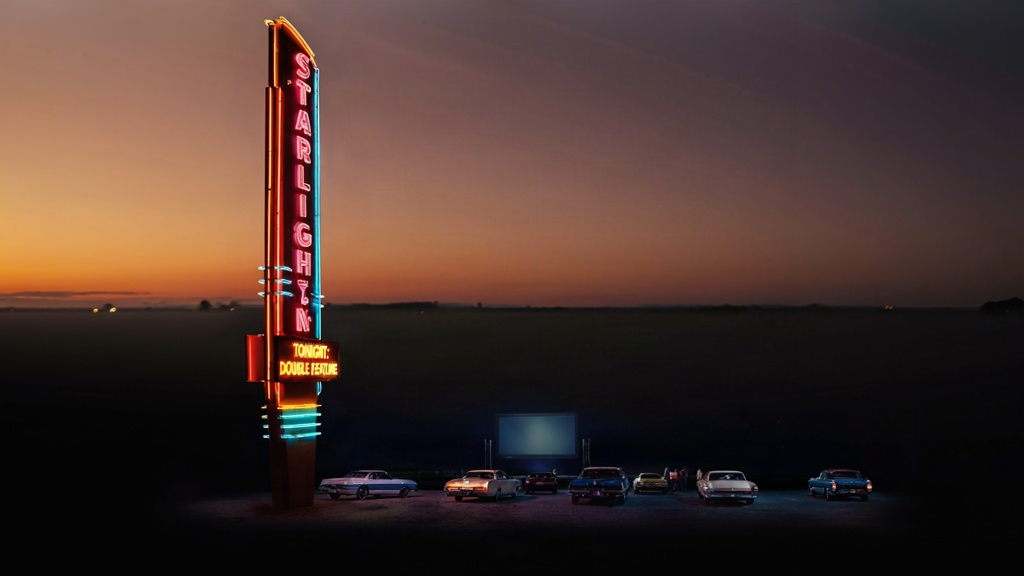
Prompt (rendering_speed: QUALITY, aspect_ratio: 16:9):
A retro 1970s American drive-in movie theater at dusk, tall neon marquee sign
reading "STARLIGHT DRIVE-IN" in glowing pink and cyan tube-light letters,
below it in smaller warm-yellow neon "TONIGHT: DOUBLE FEATURE", rows of
classic cars parked facing a giant outdoor screen in the distance, warm dusk
sky gradient from orange to deep purple, wide cinematic photograph, sharp
focus on the marquee lettering.
Both lines of text came out legible and correctly spelled on the first render — no retries needed. The main lever we pulled was putting the exact copy in double quotes and describing the letter style ("glowing pink and cyan tube-light letters") right next to it, rather than describing the sign generically and hoping the model would invent reasonable copy.
A Circular Logo With Curved Text
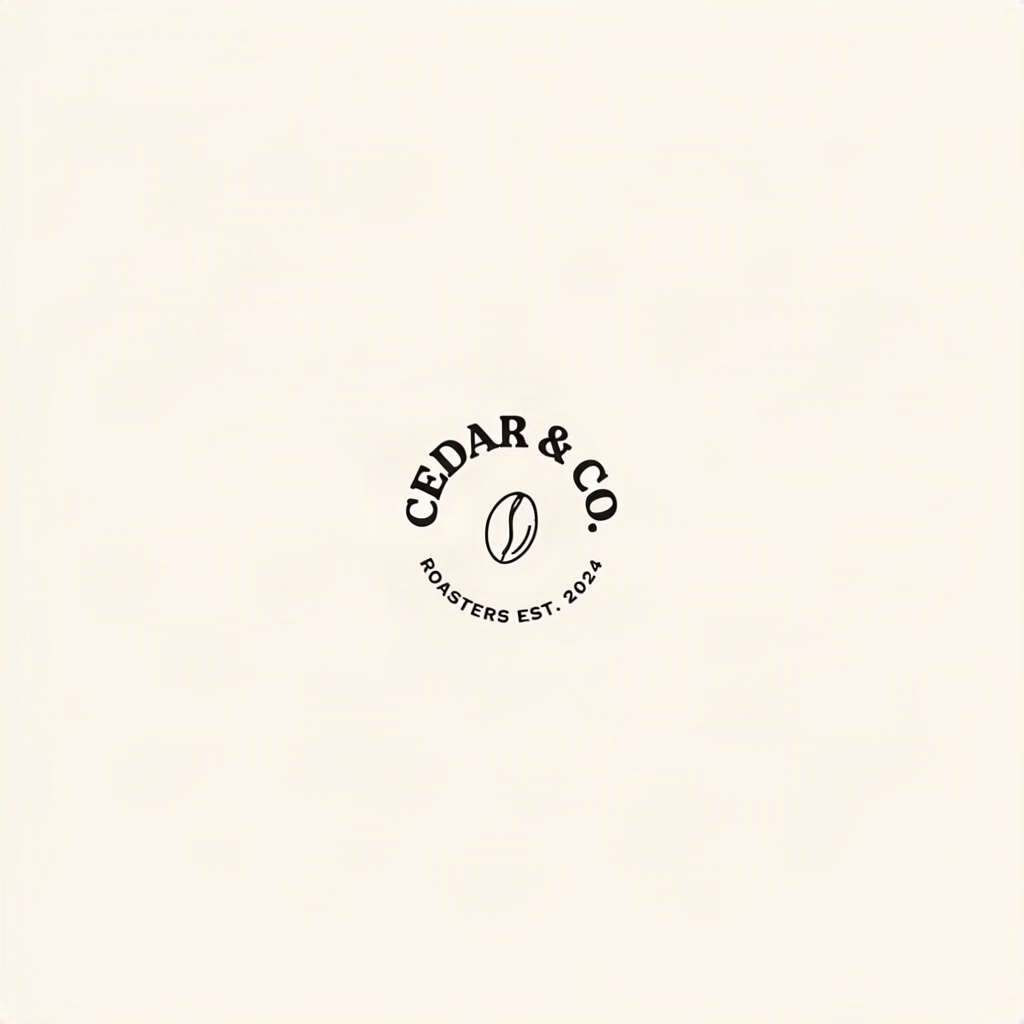
Prompt (rendering_speed: BALANCED, aspect_ratio: 1:1):
A minimalist coffee brand logo lockup on a flat cream background: a circular
badge emblem with the words "CEDAR & CO." in bold serif letters arcing
around the top of the circle, and "ROASTERS EST. 2024" in small sans-serif
letters arcing along the bottom, a simple line-art coffee bean icon centered
inside the circle, flat vector illustration style, single dark-brown ink
color, crisp clean linework.
This is the harder case: two separate curved text elements at different sizes, arced along a circle, plus an icon that has to stay centered without colliding with the lettering. BALANCED handled the curvature and spacing correctly in one pass — the kind of layout-aware text placement that's a common failure point for models that treat text as decoration rather than structure.
What You Can (and Can't) Control
ideogram-v4's input schema is intentionally narrow — four fields, nothing else:
prompt(required) — your full description, with the literal text you want rendered in quotes.rendering_speed(required) —TURBO,BALANCED, orQUALITY. This is the main quality/cost/latency dial.aspect_ratio(optional) —1:1,16:9,4:3,9:16, or3:4.seed(optional) — integer, for reproducing a result.
There's no negative_prompt, no style_type, no num_images, no image-editing input — the model is text-to-image only. If you're used to steering generation with negative prompts or style presets, that control has to move into the main prompt instead: describe what you want positively ("flat vector illustration, single ink color") rather than what to avoid.
The practical workflow that worked well for us: iterate on wording and composition with TURBO since it's the cheapest and fastest way to see if the text is landing right, then re-run the winning prompt on QUALITY with the same seed for the final asset.
Pricing at a Glance
ideogram-v4 is priced per render tier — TURBO is the cheapest, QUALITY the most expensive of the three, roughly in line with the latency difference between them. Exact current rates and any other model's pricing live on the pricing page; check there before budgeting a batch since rates can change.
FAQ
Does ideogram-v4 support image editing or image-to-image? No — the model is text-to-image only. There's no input-image field in its schema, so edits or restyles of an existing image aren't something this specific model does.
Can I turn off text rendering and just get a normal scene? Yes, simply don't put any quoted text in your prompt. The model doesn't force text into a composition — it renders what you describe.
What's the fastest way to iterate on a text-heavy design?
Run cheap TURBO passes to nail the wording and layout, then switch to QUALITY with a fixed seed once you're happy, so the final render matches the composition you approved.
Which aspect ratios are supported?
1:1, 16:9, 4:3, 9:16, and 3:4. There's no free-form width/height — pick the closest supported ratio for your placement.
Is there a way to fix a single word that came out wrong? Not via a partial-edit parameter — re-run the prompt (optionally with a new seed, or with the problem phrase rewritten) since the model is text-to-image only. For full API request examples including error handling, see the step-by-step API tutorial.
Takeaways
- Choose ideogram-v4 when legible, correctly-spelled text is the deliverable, not a background detail — posters, logos, signage, labels.
- Quote your exact copy in the prompt and describe its letter style right next to it; that's the main lever for accurate typography, since there's no dedicated text parameter.
- There's no negative prompt or style preset — steer the model entirely through positive, specific description in
prompt. - Iterate cheap on
TURBO, finalize onQUALITYwith a fixedseedto lock in a composition you've already approved. - The schema is strict (4 fields only) and text-to-image only — no editing, no
resolution, nonum_images.
Ready to try it? Head to the ideogram-v4 model page to test prompts in the playground, or jump straight to the curl and Python walkthrough if you're wiring it into a pipeline. If your prompts need more descriptive detail before they hit the model, prompt expansion is worth pairing with typography-heavy requests too.